Recover an unfinished screen recording after a crash, and what the disk guard does
The footage is written as you go, so a crash costs you about a second, not the whole session.
 LAAGU··2 min readTimeline
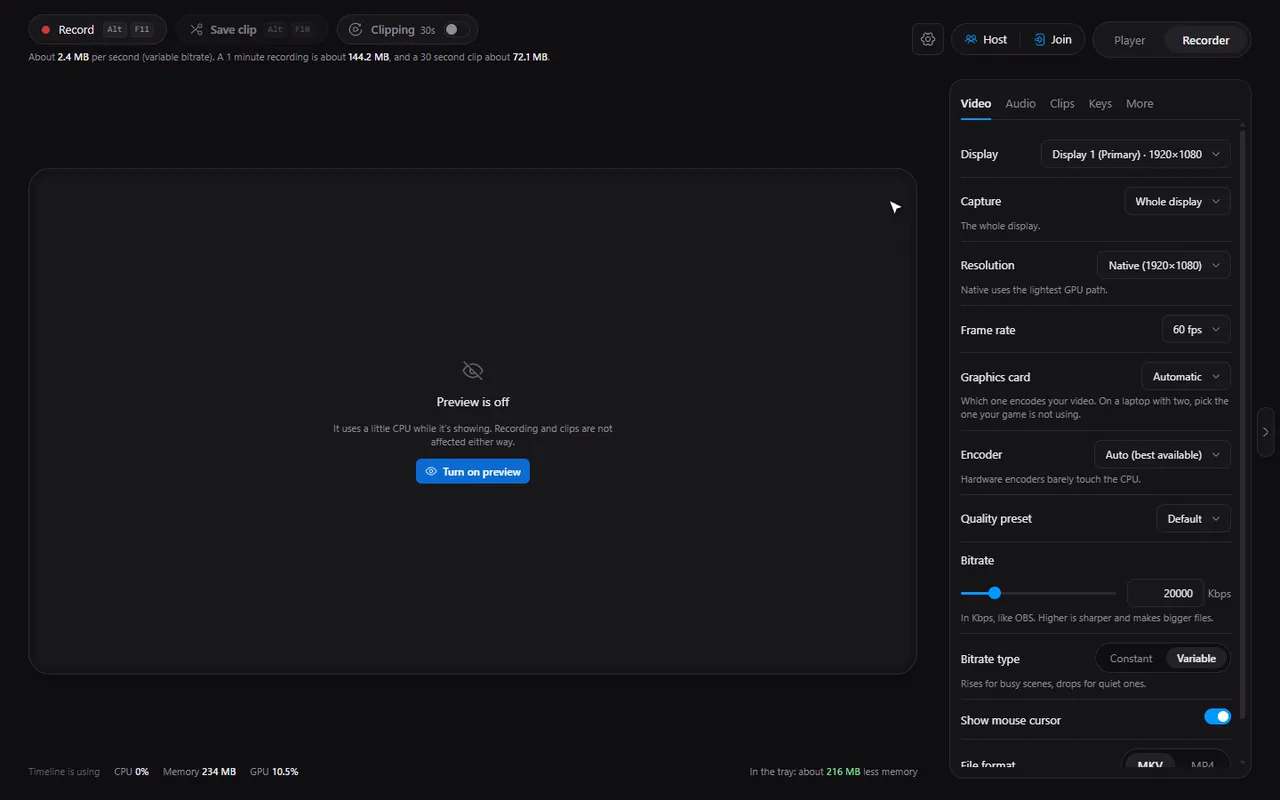
After a crash
Timeline writes a recording to disk in short pieces while you record, together with a small note about the session. If the PC crashes, loses power or the app is killed, the pieces are still there.
- Start Timeline again.
- The Recorder shows a strip saying it found an unfinished recording, with its date, length and size.
- Click Recover. Timeline joins the finished pieces into a file named Recovered with the date and time, in your recordings folder.
- If you do not want it, Delete asks you to confirm twice, so you cannot discard one by accident.
Only fully written pieces are used and the half-written last one is dropped, so you lose at most about one second at the end. Recordings made as MKV (the default) are the safest.
Try it in Timeline
Free for Windows 10 and 11. One installer, nothing else to set up.
The disk-space guard
Running out of space is the other classic way to lose a recording. Timeline checks before and during capture:
| When | What happens |
|---|---|
| Before a recording starts | It needs at least 2 GB free on the temporary drive and on the recordings drive, and a usable recordings folder |
| Before the clip buffer starts | It needs at least 1 GB free |
| While recording | It stops the recording cleanly when free space drops below 500 MB (plus the recording's size, if the temporary and recordings folders share a drive, because joining needs room for a second copy) |
| While clipping | It turns the clip buffer off when free space drops below 300 MB |
In every case it tells you what happened and that your recording was saved. The Recorder also shows the free disk space.
Lock screen, sleep and display resets
Locking the PC, sleeping, or a graphics driver reset can interrupt a capture. Timeline saves the part it has. If the clip buffer was on, it retries every 5 seconds for up to 5 minutes and posts a "Capture resumed" notice when it is back, so your clips come back without you doing anything. A calm strip says capture was interrupted while it retries, with a Stop trying button.
If saving the final file fails
If joining the final file fails (the disk is full or the folder is gone), Timeline does not throw the footage away. It moves the pieces into a saved folder that looks like a crashed session, so they show up as recoverable straight away. Fix the folder, click Recover, and you have your file.
Tip. Recorded something important and the PC is acting up? Do not delete anything from the temporary recordings folder. Start Timeline and use Recover first.
Questions
How much of a crashed recording is lost?
At most about one second at the end: only completed pieces are used and the half-written last one is dropped.
Where does the recovered file go?
Into your recordings folder, named Recovered followed by the date and time.
What happens if the disk fills up?
Timeline stops the recording cleanly before it is too late (below 500 MB free) and saves it, then tells you why.
Does the clip buffer survive a lock screen or sleep?
Yes. It retries every 5 seconds for up to 5 minutes and shows a Capture resumed notice.