MKV or MP4 for screen recording? Why Timeline records MKV by default
Both hold the same picture and sound. What differs is what happens when a recording is interrupted, and where the file will play.
 LAAGU··2 min readTimeline
The difference in one line
In Timeline's own words: MKV survives crashes. MP4 plays everywhere. The format is a container around the video and audio, and the two containers behave differently when a recording is cut short.
| MKV (default) | MP4 | |
|---|---|---|
| If the PC crashes or loses power | The file is not lost | A recording that never finished can be unusable |
| Plays in Timeline | Yes | Yes |
| Plays on phones, TVs, most sites | Not everywhere | Almost everywhere |
| Editors | Most can open it; some need a plug-in | Opened by nearly all |
Try it in Timeline
Free for Windows 10 and 11. One installer, nothing else to set up.
How to choose
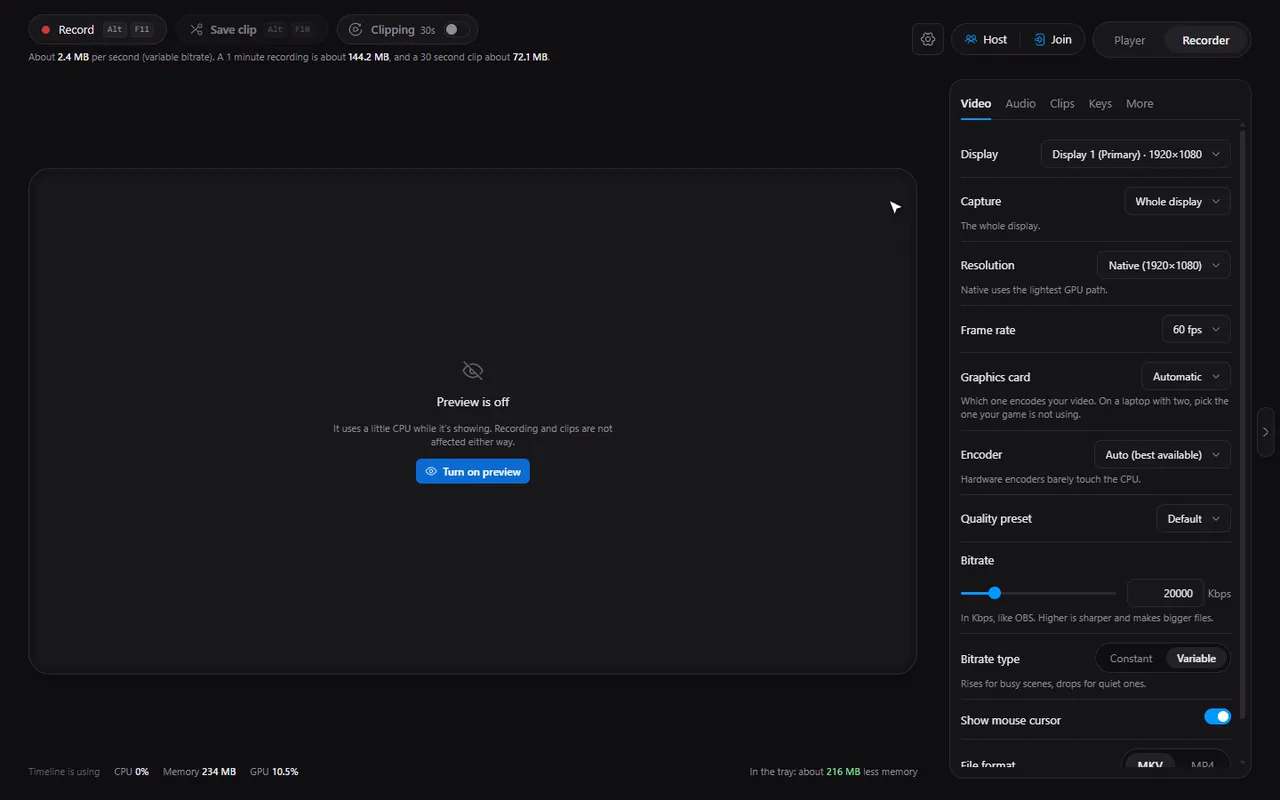
- Open the Recorder tab and the Video tab in its side panel.
- Find File format near the bottom.
- Pick MKV or MP4.
- Long sessions, games, anything you cannot redo: MKV. If a crash interrupts it, you still have your footage, and Timeline can recover it.
- A clip you will upload straight away to a site that insists on MP4: MP4.
- Not sure: stay on MKV and convert later if needed.
Why the container matters when something goes wrong
Timeline does not write one big file that is only valid at the end. It writes the recording in short pieces while you record, and when you stop it joins the pieces into your final file. The crash protection comes from that design: after a crash the finished pieces are still on disk, and Timeline can join them for you at the next start.
The container decides how forgiving the result is. An MKV can be read even if it was never finished, which is why it is the default. See recovering an unfinished recording for what you will see after a crash.
If you are going to edit
- Most editors open MKV directly. If yours does not, switch the File format to MP4 before you record, so you never need to convert.
- Recording with separate audio tracks? Check that your editor shows every track: see audio tracks.
Opening an MKV elsewhere
Timeline plays MKV, of course. If you send an MKV to someone and their player will not open it, they can install a player that supports it, or you can record in MP4 for that case. The formats guide lists what Timeline itself plays.
Note. Changing the format only affects recordings you make afterwards. Files you already recorded stay as they are.
Questions
Why is MKV the default?
Because it survives crashes: if the PC or the recorder stops unexpectedly, the footage is not lost. MP4 is available for maximum compatibility.
Can I record in MP4 instead?
Yes. Switch File format to MP4 in the Recorder's Video tab.
Does Timeline play both?
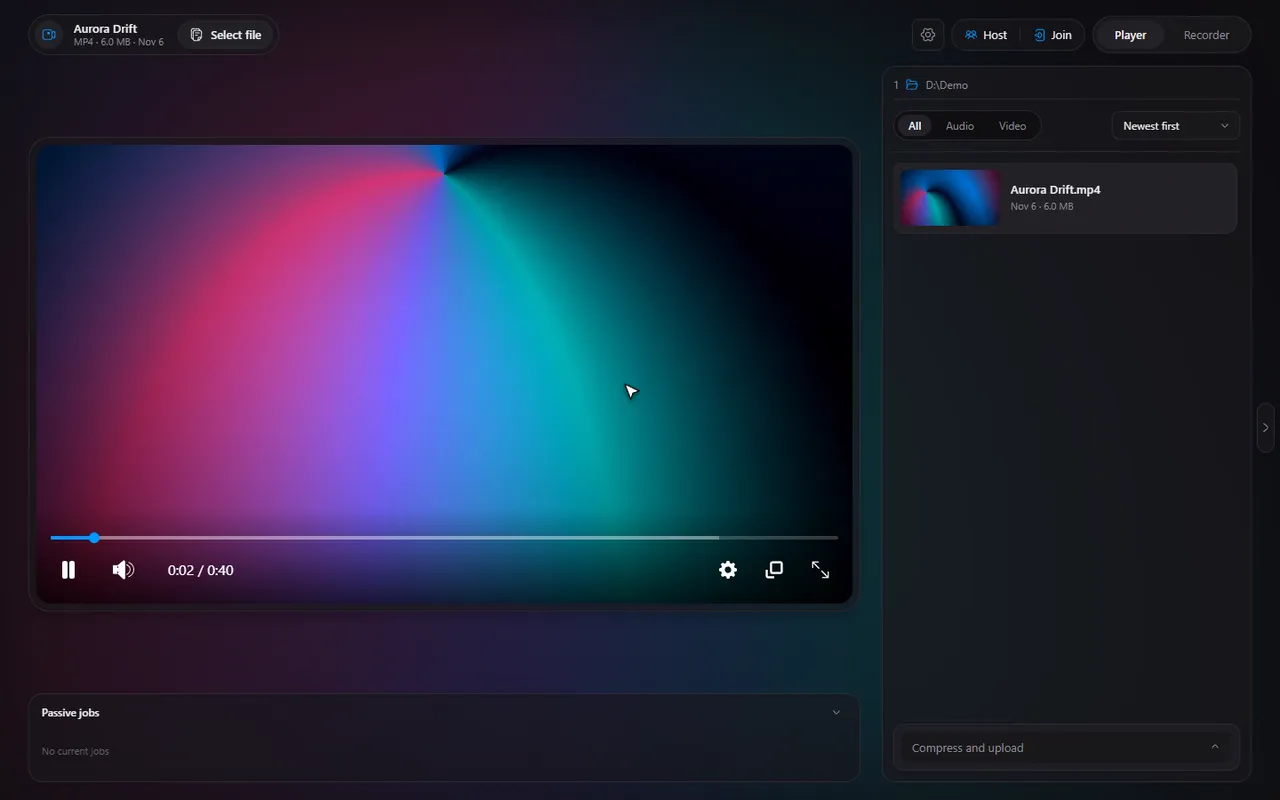
Yes. Both formats play in the player.
Can I recover an MP4 after a crash?
Timeline records in short pieces and joins them when you stop, so it can offer to recover an unfinished recording at the next start. MKV is the safest choice for anything you cannot redo.
Does the format change the quality?
No. The format is the container around the picture and sound. Quality comes from the encoder and the bitrate.