Compress a video to a target size on Windows (under 25 MB, or any number)
A message app says the file is too big. Tell Timeline how big it is allowed to be, and it makes a copy that fits.
 LAAGU··2 min readTimeline
When you need this
Chat apps, e-mail and forums all limit file size. A recording of a few minutes is often far over it. Compressing gives you a smaller copy that is small enough to send. Timeline lets you state the result you want, in megabytes, instead of juggling bitrates.
Compress a video, step by step
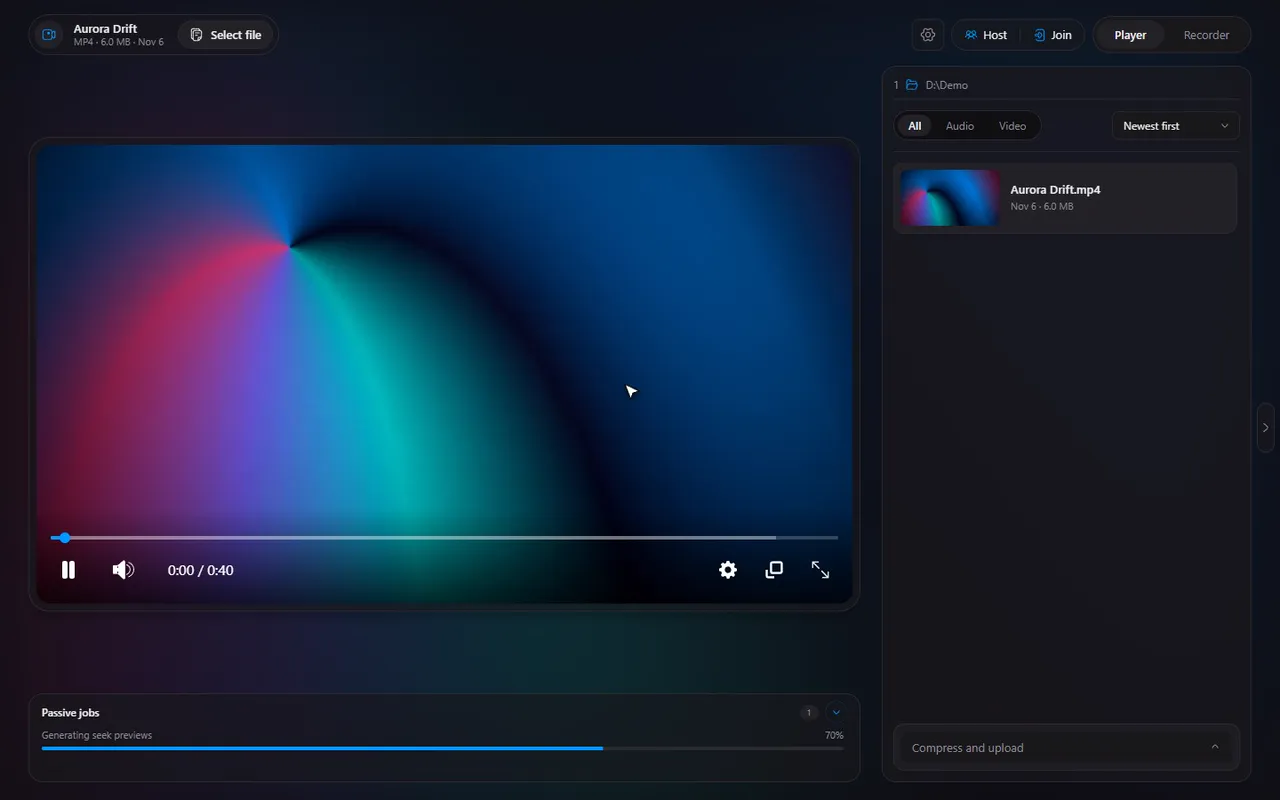
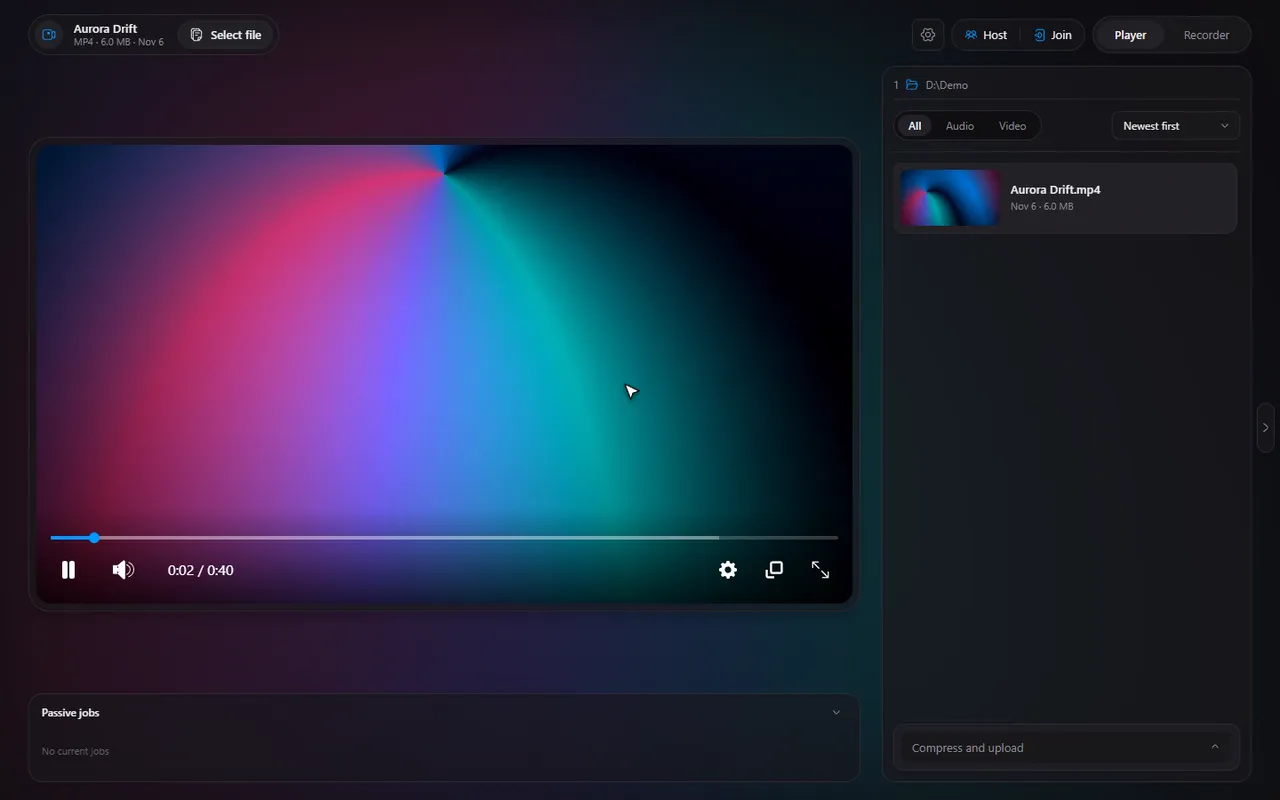
- Open the video in Timeline.
- Open the Compress and upload row in the file panel (it starts collapsed, and remembers if you open it).
- Make sure Compress is selected in the switch at the top.
- Choose an Encoder. A graphics-card encoder is the fast choice; Timeline shows the ones available on your PC.
- Choose a Quality preset for that encoder.
- Set the Target size in MB, with the number box or the slider (from 1 to 2000 MB; the starting value is 25).
- Click Compress and save and choose where to put the new file.
A progress bar with a percentage shows how far it is, and Cancel stops it. When it finishes, a Timeline pop-up tells you (it also shows when the Timeline window is not in front).
Try it in Timeline
Free for Windows 10 and 11. One installer, nothing else to set up.
Set a sensible target
The target must be smaller than the original. If you ask for a size at or above the file's current size, Timeline stops you with a "Target size too big" message. The smaller the target compared with the video's length, the softer the picture, so for a long clip, expect to give up some sharpness.
| You want | Try |
|---|---|
| A short clip for a chat app | A target just under the app's limit, for example 25 MB |
| A long recording for e-mail | A target near the limit, and accept a softer picture |
| Keep as much quality as possible | The slowest, highest-quality preset your encoder offers |
GPU encoders
Compression uses the GPU encoders in your PC where available, so it is much quicker than doing it all on the processor. Pick the encoder from the list; your choice and preset are remembered for next time. For what the encoder names mean, see NVENC, AMF, x264 and AV1.
Then share it
The same panel has an Upload tool: it uploads a file to Gofile and gives you a link to copy. See upload a video and share the link.
Careful. Compressing makes a lower-quality copy. Keep the original if you may need it again.
Questions
How do I make a video under 25 MB?
Open it in Timeline, open the Compress and upload row, keep the Compress tool, set Target size to 25 MB, pick an encoder and click Compress and save.
What is the largest target I can set?
The target goes up to 2000 MB. It must be smaller than the original file.
Can I cancel a compression?
Yes. A Cancel button appears while it runs.
Is the original file replaced?
No. Timeline saves a new, smaller file where you choose.