
Record a single window on Windows, with its own sound
Skip the notifications and the second monitor. Record only the window that matters.
 LAAGU··2 min readTimeline
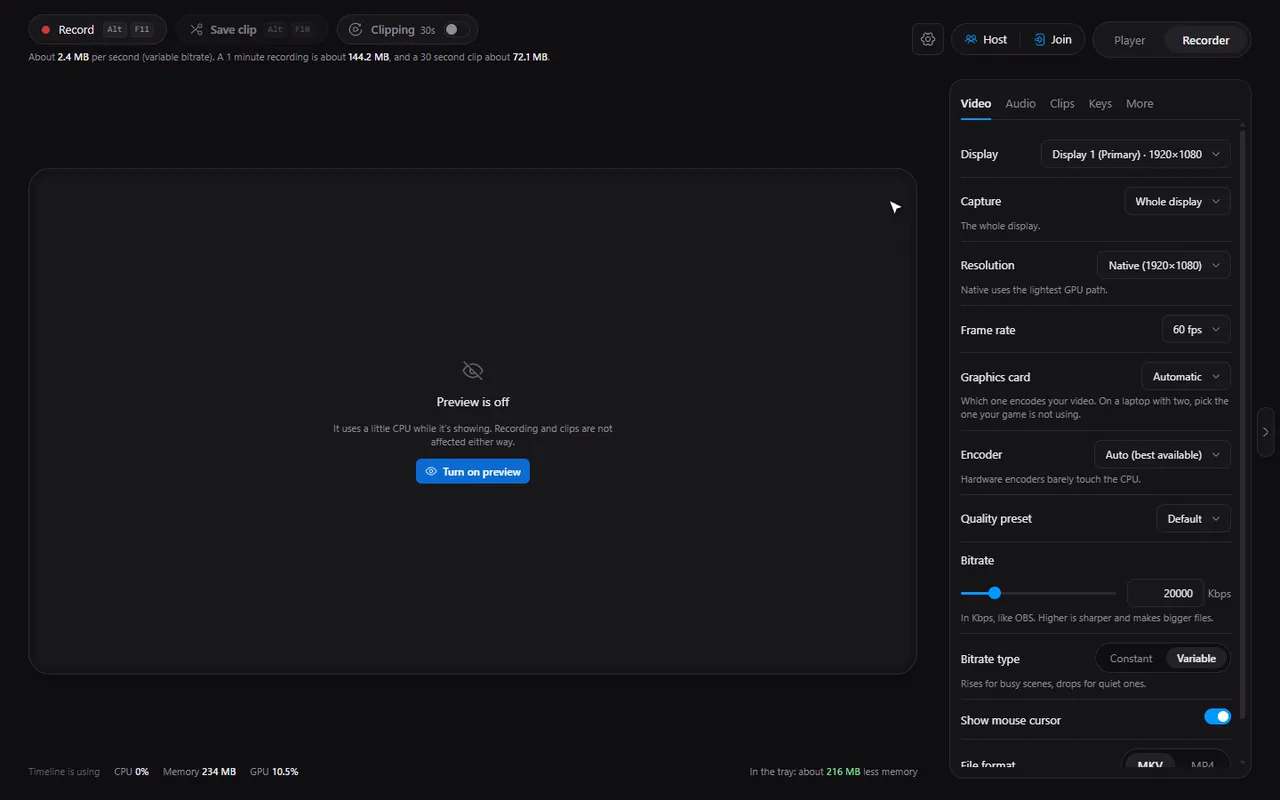
Three ways to capture
In the Recorder's Video tab, the Capture setting has three choices:
| Choice | What it records |
|---|---|
| Whole display | Everything on the monitor you picked |
| One window | Only the window you choose, wherever it is on screen |
| Any fullscreen window | Whichever fullscreen program is in front |
Record one window
- Open the program you want to record.
- In the Video tab, set Capture to One window.
- Open the Window list. Each entry shows the window title and the program, so you can tell two windows of the same app apart.
- Pick the window and start recording with AltF11.
Try it in Timeline
Free for Windows 10 and 11. One installer, nothing else to set up.
If the window you chose is closed later, the list shows it as not open and keeps your choice for next time.
Note. In window capture, the mouse cursor is drawn only while that window is in front.
That program's sound
When you capture one window, Timeline can record only that program's sound, not everything the PC plays. The switch is Capture this program's sound and it is on by default. Under it:
- Volume: from 0 to 200%.
- Own track: keep the program's sound on its own track, apart from your microphone, so you can edit them separately (see separate audio tracks).
- Mute when not in front: silences the program's sound in the recording while another window has focus.
Whole display or one window?
| Whole display | One window | |
|---|---|---|
| What is in the file | Everything on that monitor, including pop-ups and other windows | Only the chosen program |
| Best for | Games, demos that move between programs | Tutorials, bug reports, meetings, anything private around it |
| Program's own sound | Use Desktop audio for everything you hear | Capture this program's sound, on its own track if you like |
| Mouse cursor | Drawn as you move it | Drawn only while the window is in front |
Window capture and the clip buffer
The same Capture setting applies to the replay buffer. If you change it while the clip buffer is running, a banner offers Restart clip buffer to apply, because the buffer has to start again to capture the new target.
When to use which
- A tutorial or a bug report: one window, so no private messages or other tabs sneak in.
- A game: any fullscreen window, or the whole display.
- A meeting or a presentation: one window plus the microphone.
Careful. A window recording only contains that window. If a pop-up from another program appears on top, it is not captured, which is usually what you want.
Questions
Can I record just one application?
Yes. In the Video tab set Capture to One window and pick the window.
Can I record the sound of only that program?
Yes. Capture this program's sound is on by default when you capture one window, and it can be kept on its own track.
What does Any fullscreen window do?
It captures whichever fullscreen program is in front, so you do not have to pick it each time.