Seek bar preview thumbnails on Windows: how they work and how to turn them off
Stop guessing where the good part is. Hover the timeline and Timeline shows you the frame before you click.
 LAAGU··3 min readTimeline
What seek previews are
When you move the mouse over the timeline under a video, a small card appears above the pointer with a picture of that moment and its time. You see the scene first, then you click. It is the same idea as the hover pictures on video sites, but for the files on your own PC.
It is most useful on long files: a two-hour film, a recorded stream, a lecture or a game session where you are hunting for one moment. Instead of clicking, watching a second and clicking again, you scan along the bar with your eyes.
How they are made
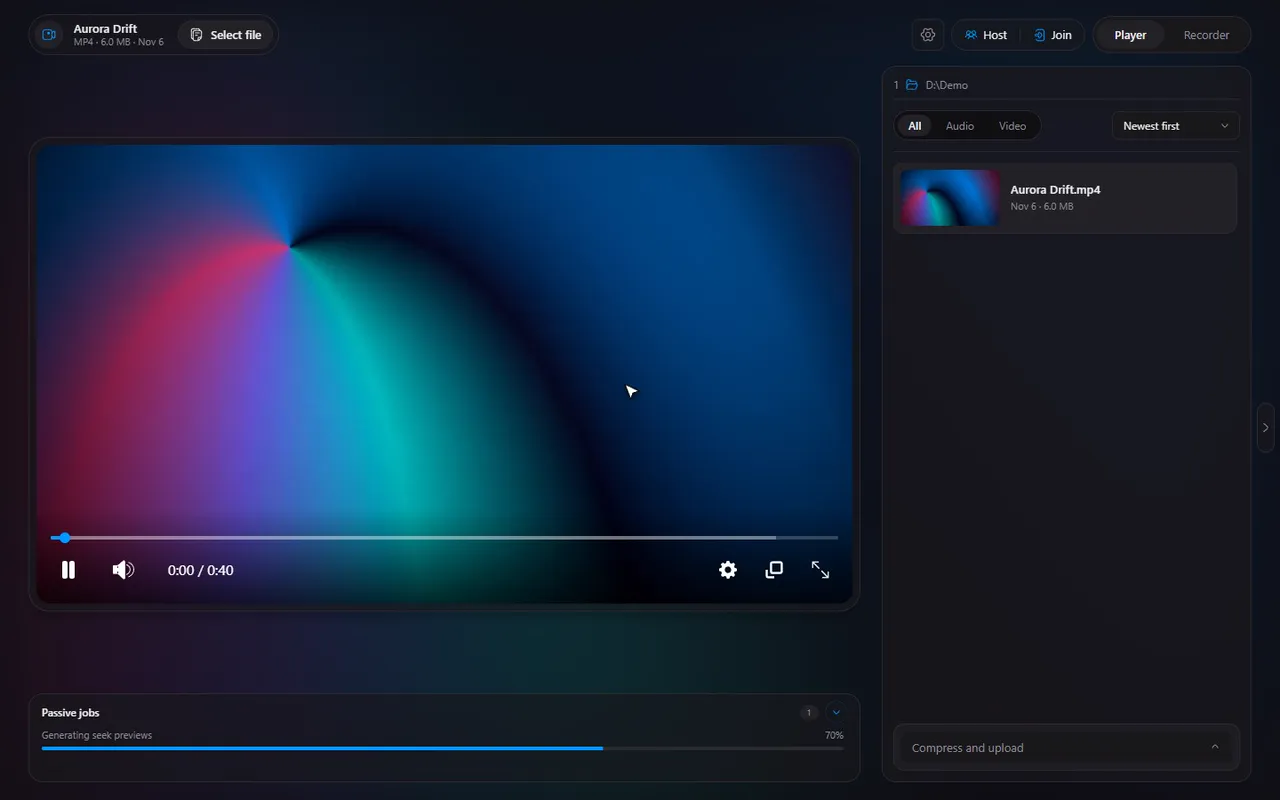
Timeline makes 20 small pictures per video. It takes one from the middle of each 5% section of the file, so the previews are spread evenly from the start to the end. They are about 200 pixels wide, which is enough to recognise a scene and small enough to be quick to make.
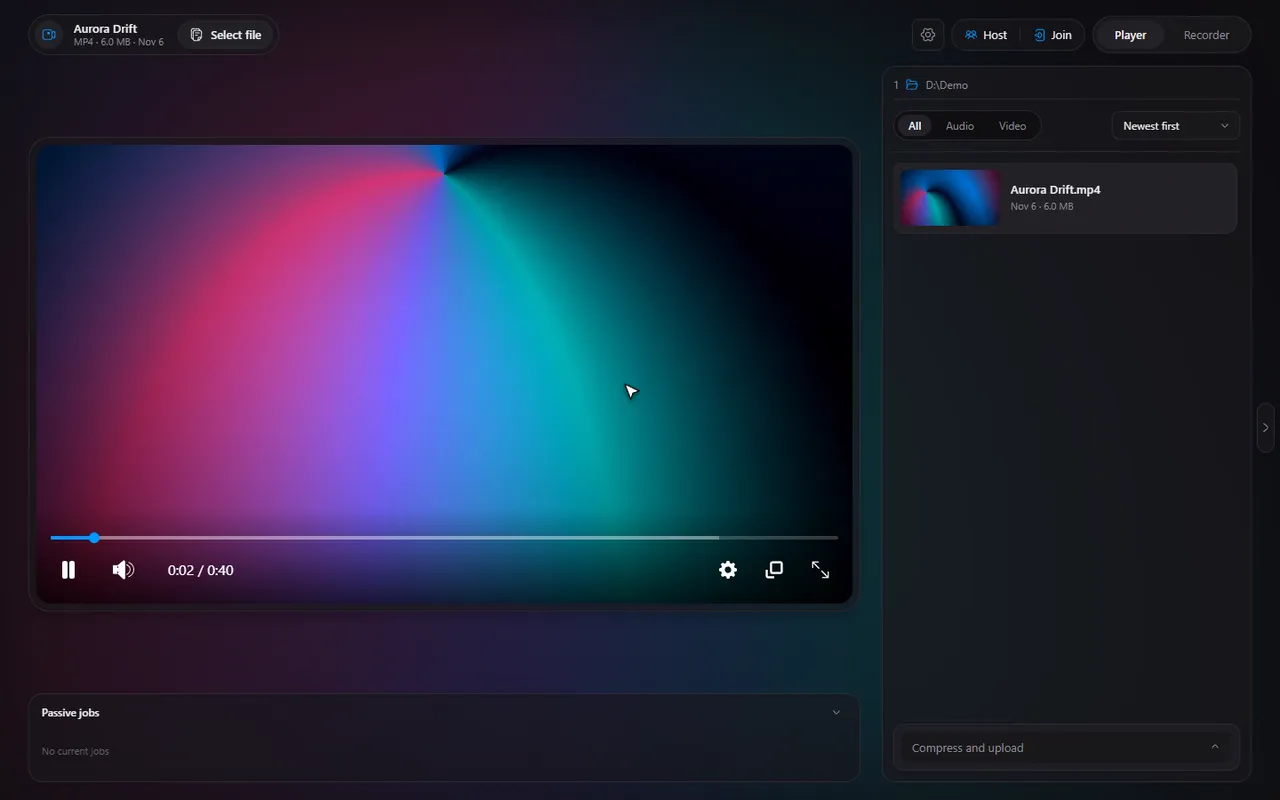
The work happens in the background, about a second and a half after the file loads, and it runs at low priority so it does not get in the way of playback. If you hover a spot whose picture is not ready yet, you see a "Generating preview" placeholder instead of an empty card. Once a video has been processed, its previews are kept, so the next time you open the same file they appear straight away.
- Video files get previews. Audio files do not, because there is no picture to show.
- The previews are made from the file on your disk and never leave your PC.
- In a watch together session the host can share their previews so guests get them too.
Try it in Timeline
Free for Windows 10 and 11. One installer, nothing else to set up.
How to switch them off
Seek previews use extra CPU while they are being generated, which is why they have a switch. On a slow PC, or on a laptop on battery, you may prefer them off.
- Open a video and press CtrlS to open the player settings.
- Switch Seek previews off. The hint under it reminds you that it uses more CPU while the pictures are made.
- To turn them back on, flip the same switch. The same option is on the Player page of the app's Settings window.
Note. Turning previews off stops new ones from being made. It does not delete the ones already stored: use the Cache page for that.
Where the pictures are stored
The previews live in a cache folder so they do not have to be made twice. In Settings, Cache you can see how much room they take, open the folder, or clear them. Clearing them is safe: Timeline simply makes new ones the next time you play that video. There is a full guide to the cache manager.
Getting more out of the seek bar
- Combine it with the number keys: 1 to 9 and 0 jump to 10% through 100% of the video. Hover first, then jump.
- While you are trimming, the seek bar turns into the trim bar, and the hover card is off (see trim a video on Windows).
Questions
Do seek previews work for every video?
They work for the video formats Timeline plays, such as MP4, MKV, WebM, AVI and MOV. Audio files have no picture, so they have no previews.
Do previews slow playback down?
They are made in the background at low priority and only while a file is being prepared, but making them does use extra CPU. If you notice it on your PC, turn Seek previews off in the player settings.
Why does the card say Generating preview?
The 20 pictures are made one after another. If you hover a part of the timeline whose picture is not finished yet, the card shows that message until it is.
Are the pictures uploaded anywhere?
No. They are made on your PC from your file and stored in Timeline's cache folder.