
Ambient mode: the soft glow behind your video, and when to turn it off
The glow behind the player is the one decorative effect in an otherwise plain app. It is on by default, and it is one switch to turn off.
 LAAGU··2 min readTimeline
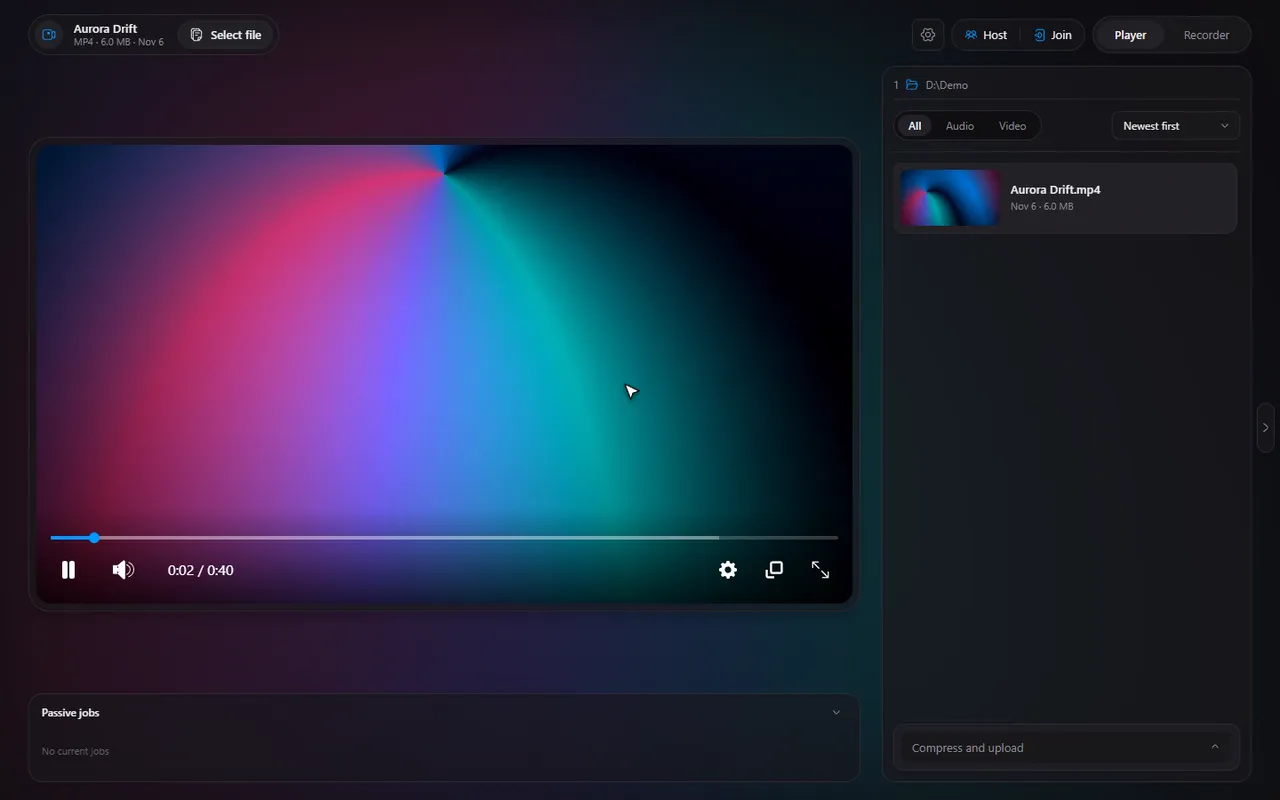
What ambient mode is
Ambient mode takes the colours of the video you are watching and paints a soft glow of them behind the player. A warm scene gives a warm glow; a blue scene gives a blue one. It changes as the video changes. The effect is the signature look of Timeline and the only glow the app uses; the rest of the interface is flat and calm.
How to turn it on or off
- Open a video and press CtrlS to open the player settings.
- Find Ambient mode and flip the switch.
- The same option is in Settings, Player.
It is on by default. In the light theme the glow is shown at a lower strength so it never washes the page out.
Try it in Timeline
Free for Windows 10 and 11. One installer, nothing else to set up.
What it costs
The glow is drawn live from the video, so ambient mode uses more GPU. On a PC with a graphics card that is rarely a problem, but on a small laptop it adds up, especially on battery or while you also record the screen. The switch has a hint that says so.
- Watching on a powerful PC: leave it on and enjoy it.
- On battery or on an older laptop: turn it off to keep the GPU free.
- Recording or clipping while you play: your game needs the GPU, so turn it off while you do other GPU-heavy things.
Ambient mode and the themes
Timeline has Dark, Light and a setting that follows Windows (see the settings guide). Ambient mode is available in all of them. It is most striking in the dark theme, where the glow is the brightest thing around the video.
Tip. Fullscreen keeps the glow too: the bars around the video are filled with it, so a widescreen film on a different-shaped screen does not leave plain black edges.
Questions
Is ambient mode on by default?
Yes. You can turn it off in the player settings (Ctrl+S) or in Settings, Player.
Does ambient mode use a lot of GPU?
It uses more GPU than playing without it, which is why the switch carries that hint. Turn it off on a weak PC or on battery.
Does it work in the light theme?
Yes, at a reduced strength so the page is not washed out.