
Timeline settings explained: General, Player, Recorder, Cache, Logs and About
Six pages, and everything you can change fits on them. Here is what is where.
 LAAGU··2 min readTimeline
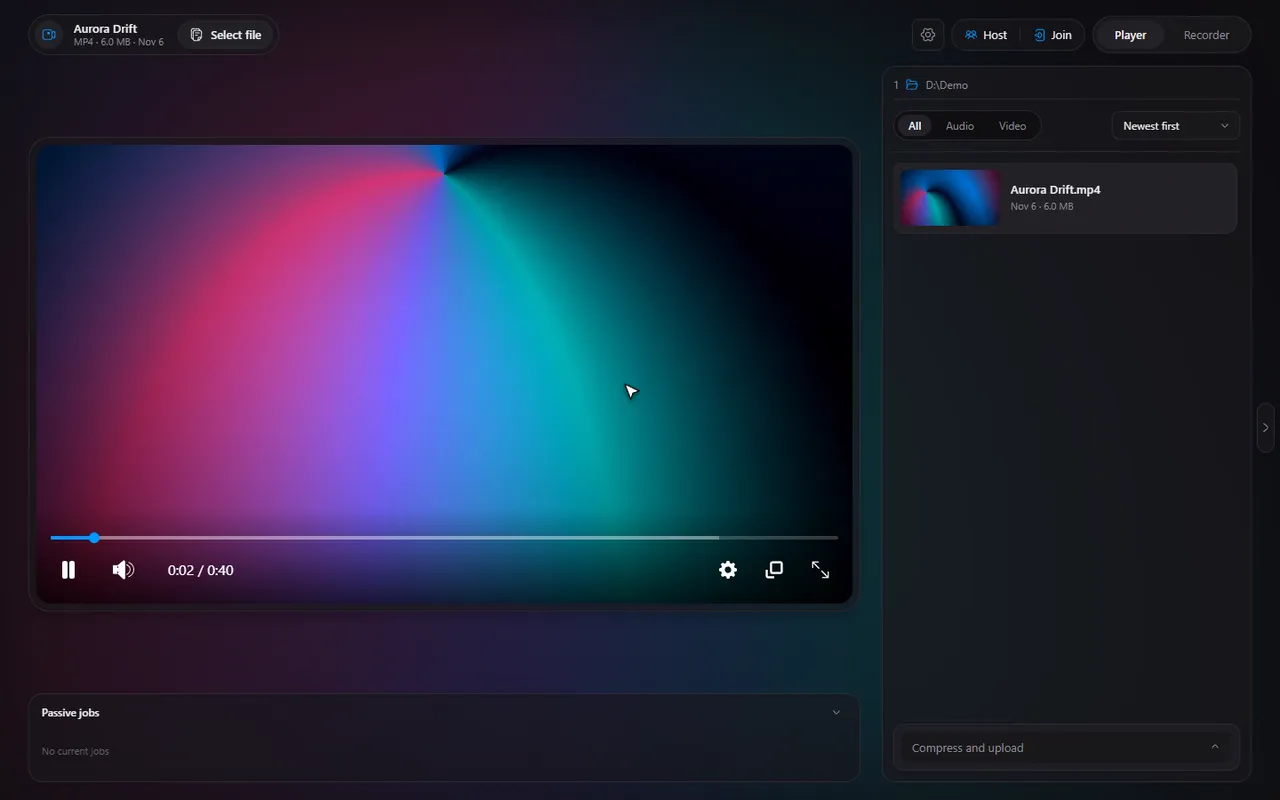
Open Settings from the header of the app. The window has a menu of pages, and each page has a one-line description so you know what you will find.
The six pages
| Page | What it is for |
|---|---|
| General | Appearance, notifications and how Timeline behaves |
| Player | Playback, speed and keyboard shortcuts |
| Recorder | Video, audio, clips, hotkeys and where files go |
| Cache | What Timeline stores on disk, and how to clear it |
| Logs | What Timeline did, with problems highlighted |
| About | The version, release notes and ways to support Timeline |
Try it in Timeline
Free for Windows 10 and 11. One installer, nothing else to set up.
General
- Theme: Dark, Light, or System, which follows your Windows setting.
- Auto start Timeline: starts it when Windows boots. Start in the tray (on by default) makes it open as the tray icon only: see the tray guide.
- What happens when you close the window while clipping or recording.
- Notifications: the pop-ups, their position, duration and sound: pop-up guide.
- Default player: make Timeline your default player.
Player
- Auto play: start playing as soon as a file opens.
- Pause in settings: pause the video while the player settings are open.
- Ambient mode: the glow, which uses more GPU.
- Seek previews: the hover pictures, which use more CPU while they are made.
- Hotkeys, with the Skip step and Volume step: all the keys.
Trimming, playback speed and captions are in the player settings that open on top of a video with CtrlS.
Recorder
The same five tabs as the Recorder's side panel: Video, Audio, Clips, Keys and More. They are covered in record your screen and save the last 30 seconds.
Cache
Shows what Timeline keeps on disk and lets you open or clear each part: the cache manager.
Logs
A readable record of what Timeline did, with problems highlighted. If something goes wrong, you can open or copy the log from here when you report an issue on GitHub.
Settings worth changing first
| If you want to... | Go to |
|---|---|
| Switch between dark and light | General, Theme |
| Open files with a double-click | General, Default player |
| Have the replay buffer ready after every login | General, Auto start Timeline, then Recorder, More, Start clipping when Timeline starts |
| Move or silence the pop-ups | General, Notifications |
| Change a key | Player (video keys) or Recorder, Keys (record and clip keys) |
| Turn off the glow or the hover pictures | Player, Ambient mode and Seek previews |
| Get disk space back | Cache |
About
- The version and the What's new release notes: updates.
- Usage data: the anonymous sharing switch: what is sent.
- Ways to support the app.
Questions
How do I switch to the dark or light theme?
Settings, General, Theme: choose Dark, Light, or System to follow Windows.
Where are the recorder settings?
In the Recorder tab's side panel (Video, Audio, Clips, Keys, More) and on the Recorder page of Settings.
Where do I see the logs?
Settings, Logs.