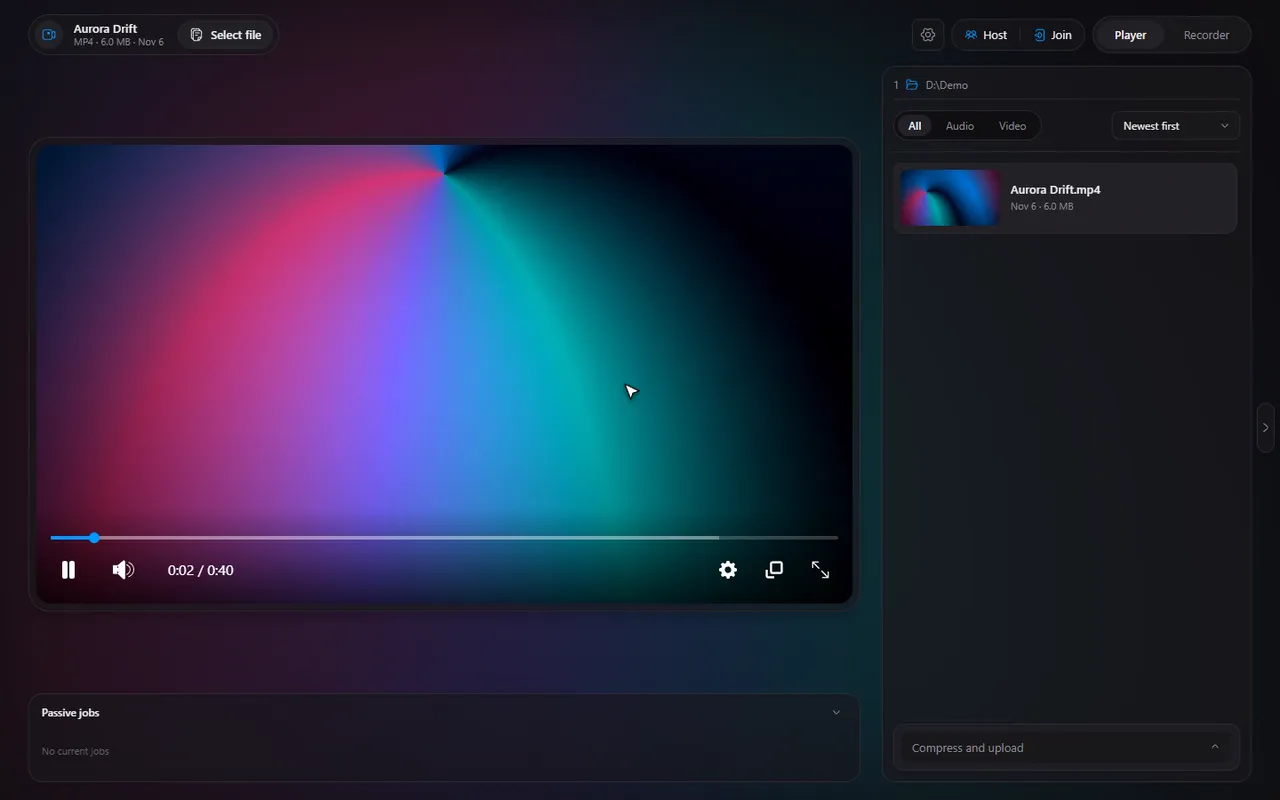
Run the screen recorder from the system tray, and start it with Windows
A recorder should not need a window open. The tray icon holds the controls, and the window's memory is freed.
 LAAGU··2 min readTimeline
The tray icon
The tray icon in the corner of the taskbar has a menu with the things you need during a game:
- Open Timeline
- Start / Stop recording
- Save clip
- Clip buffer on or off
- Open recordings folder
- Quit
Its tooltip shows the elapsed recording time and the state of the clip buffer. A click on the icon brings the window back.
Move to the tray while capturing
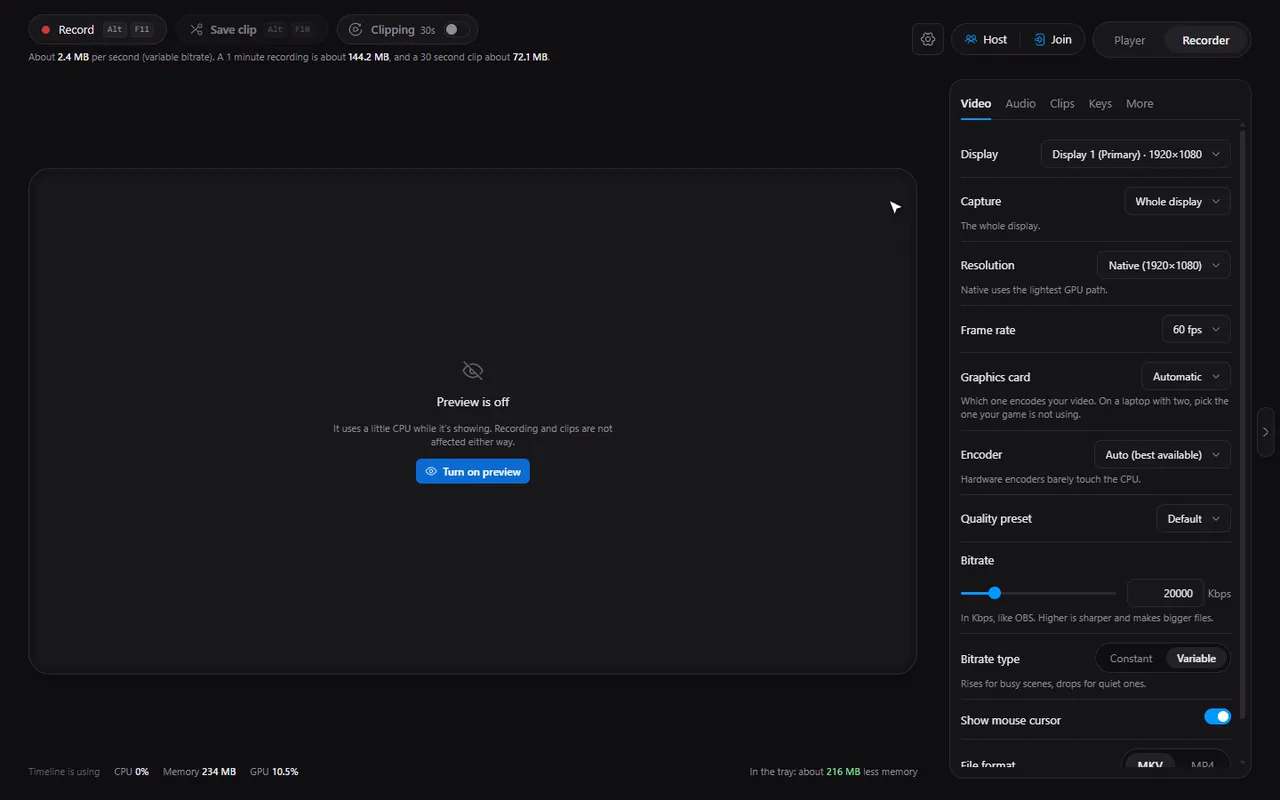
- In the Recorder's More tab, turn on Move to tray while capturing.
- Start recording or turn the clip buffer on.
- Timeline hides its window and keeps running from the tray, and tells you once with a small pop-up (you can switch that notice off in Settings, General, Notifications).
Closing the window never stops a recording or the clip buffer. Closing while clipping asks what you want to do.
Try it in Timeline
Free for Windows 10 and 11. One installer, nothing else to set up.
Why the window goes away
When Timeline moves to the tray it closes the window and frees its memory: in our measurements of the packaged app it sits at around 95 MB in the tray. The recorder itself keeps running in a small background part, so your clips and recordings are not affected.
Start with Windows
- Open Settings, General.
- Turn on Auto start Timeline. It starts when Windows boots.
- Under it, Start in the tray decides whether it opens a window or just the tray icon (on by default).
Have clipping ready automatically
In the Recorder's More tab, Start clipping when Timeline starts turns the buffer on by itself, so you always have the last seconds ready ("Always have the last 30 seconds ready", or whatever length you chose). It never starts a full recording on its own; that is always your decision.
Together, Auto start, Start in the tray and Start clipping when Timeline starts give you a replay buffer that is simply there after every login: see save the last 30 seconds of gameplay.
Careful. During a watch together session, moving to the tray is blocked: it would quit the app and end the session for everyone.
Questions
Does closing the window stop my recording?
No. Closing the window never kills a recording or the clip buffer; Timeline keeps running from the tray. If you close it while clipping, it asks what you want to do.
How do I start Timeline with Windows?
In Settings, General, turn on Auto start Timeline. Turn on Start in the tray if you do not want a window.
Can the clip buffer start by itself?
Yes. Turn on Start clipping when Timeline starts in the Recorder's More tab.