
Picture-in-picture and fullscreen: keep watching while you work
Watch a tutorial in one corner while you follow along in another app, or give a film the whole screen.
 LAAGU··2 min readTimeline
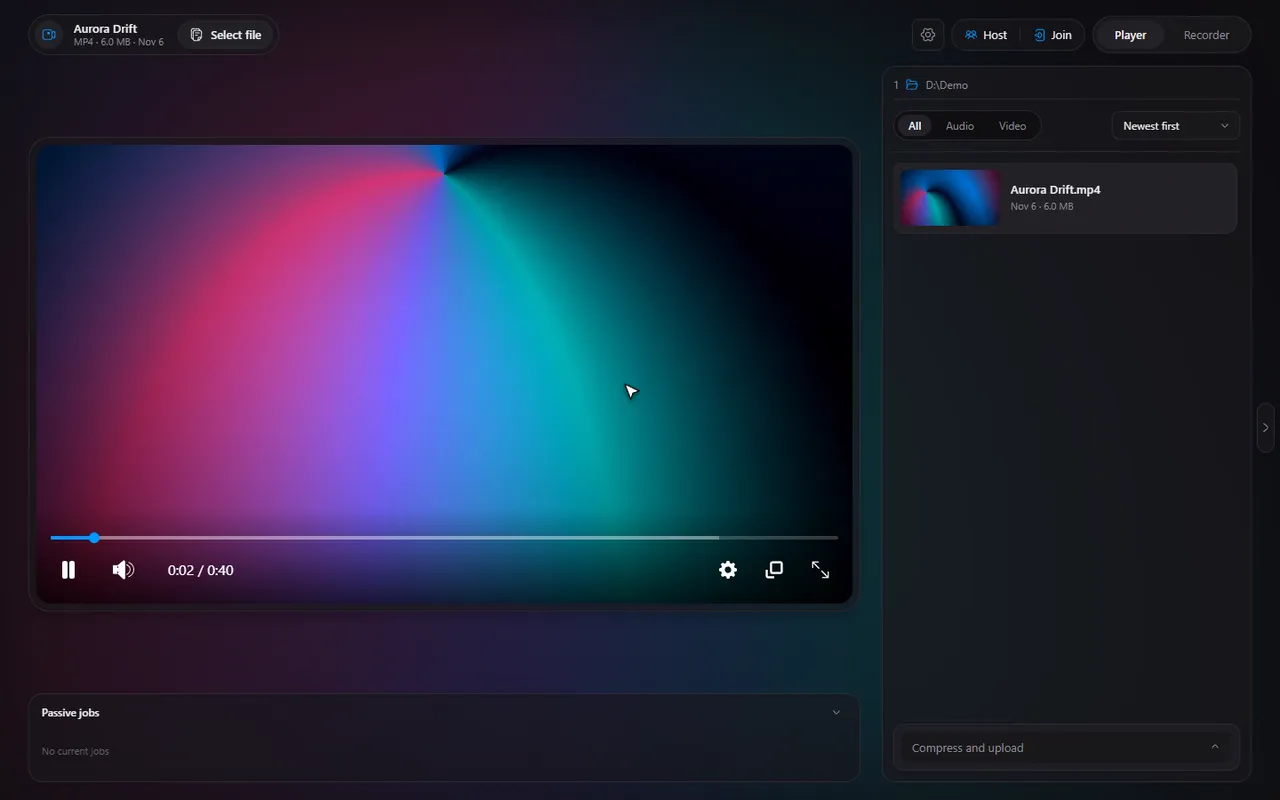
Picture-in-picture
Picture-in-picture (PiP) takes the video out of the app and puts it into a small window that stays on top of other windows. It is made for watching a tutorial or a meeting recording while you do the steps in another program.
- Start the video.
- Press ShiftP. The video moves to a small floating window.
- Press ShiftP again to bring it back into the player.
It works for any video that plays in Timeline.
Try it in Timeline
Free for Windows 10 and 11. One installer, nothing else to set up.
Fullscreen
Press F to go fullscreen and F again to leave. In fullscreen the controls get out of the way; press Enter to bring them back.
If ambient mode is on, its glow is drawn inside the fullscreen player, so the bars around a video that does not match your screen's shape are filled with the video's colours instead of plain black.
Handy keys while watching
| Key | What it does |
|---|---|
| F | Fullscreen on or off |
| ShiftP | Picture-in-picture on or off |
| Enter | Show the controls |
| M | Mute |
| ↑ / ↓ | Volume |
| Space | Pause |
Every key can be changed: see the keyboard shortcuts guide.
A routine for following a tutorial
Picture-in-picture earns its place when you learn something on screen. A routine that works:
- Open the tutorial video and press ShiftP to float it in a corner.
- Open the program you are learning and follow along in the big window.
- When you fall behind, click back into the Timeline window and press Space to pause, or ← to jump back (10 seconds by default; change the Skip step in Settings, Player).
- If the speaker is too quick, lower the playback speed to 0.75x.
Tip. The player's keys work while the Timeline window has focus. Click it, press M to mute or ↑ and ↓ to change the volume, then go back to your work.
Fullscreen tips
- Skip around quickly: the number keys 1 to 9 jump to 10% through 90% of the video, in fullscreen too.
- Frame-exact moments: pause and use frame stepping to find the exact picture.
- Leave fullscreen: press F again.
Recording and picture-in-picture
Picture-in-picture and the screen recorder work together. A floating window is just another window on your screen, and the recorder can capture a whole display or a single window.
Questions
What is the picture-in-picture shortcut?
Shift+P by default. Press it again to put the video back.
What is the fullscreen shortcut?
F by default.
How do I show the controls in fullscreen?
Press Enter.
Can I change the picture-in-picture or fullscreen keys?
Yes. Every player hotkey can be rebound in Settings, Player. See the keyboard shortcuts guide.