
The file list: open from Explorer, filter, sort and jump to the next video
A folder of videos is a playlist already. The file list makes it easy to move through it.
 LAAGU··2 min readTimeline
Open a file
- From Explorer: double-click a file, or right-click it and choose Open with, Timeline. If Timeline is already running, the file opens in that window.
- From the app: use the open button, or drag a file in.
- Make it automatic: set Timeline as the default player.
The file list
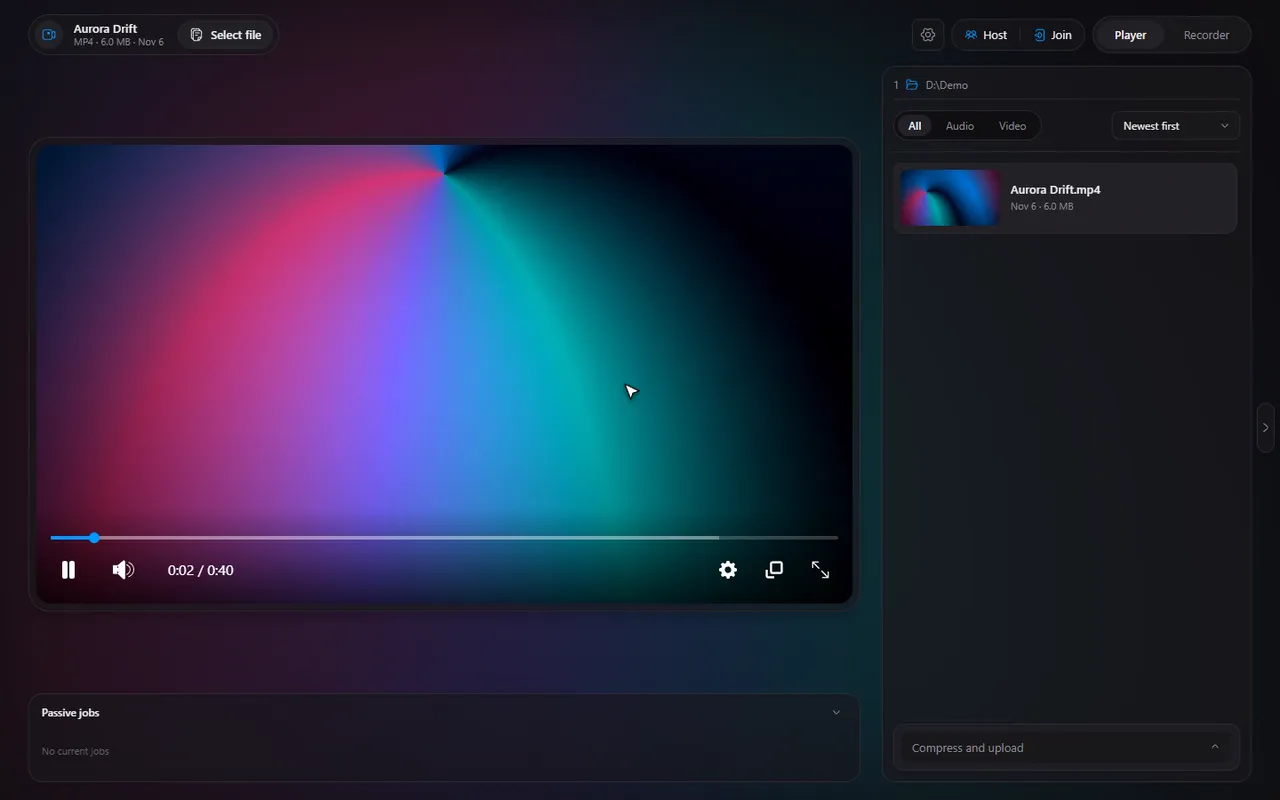
Open a file and Timeline lists the other media files in the same place on the right, each with a thumbnail, so you can see what is what without opening anything. Click one to play it.
| Control | What it does |
|---|---|
| Filters: All, Video, Audio | Show only the kind of file you want |
| Sort by name | A to Z, then Z to A, then back to the folder order |
| Sort by size | Biggest or smallest first |
| Show in folder | Opens the file's folder in Explorer |
| Hide or show the list | Gives the video the full width |
Try it in Timeline
Free for Windows 10 and 11. One installer, nothing else to set up.
Next and previous
You do not need to click the list. D plays the next file in the list and A the previous one. Other keys are in the shortcuts guide.
Thumbnails and the cache
The thumbnails are small pictures Timeline makes in the background and keeps, so the list is quick the next time. They are stored in the cache. If you want the space back, Settings, Cache can clear them, and they are simply made again when needed: the cache manager guide.
Give the video the whole window
The list can be hidden, which gives the video the full width. Hide it while you watch and bring it back when you want to pick something else. In fullscreen (F) the page around the video is hidden anyway.
Opening from Explorer while Timeline runs
If Timeline is already open and you double-click another file, it opens in the same window instead of starting a second copy. A second launch only passes the file on to the window that is already running.
Good routines
- A season of a show: put the episodes in one folder, open the first, then press D when each ends.
- Cleaning up recordings: sort by size to find the big ones, then compress or trim them.
- Only audio: filter to Audio to treat a folder as a music queue.
Careful. In a watch together session a guest cannot open their own files, and the open dialog, the list and the next and previous keys are switched off until they leave. The host keeps a Files tab beside the chat.
Questions
How do I play the next video?
Press D for the next file and A for the previous one, or click it in the file list.
Can I show only audio or only video?
Yes. The file list has All, Video and Audio filters.
Does the file list show thumbnails?
Yes, each file has a thumbnail.